
In September I wrote about the YuE2 model, which writes the score first and then sings a full song from it. Back then it ran through ComfyUI, with nodes and settings. Now it has its own YuE2 Studio: it looks and works like Suno, except it runs on your computer. No subscription, no credits and no monthly song limit.
The project has been on GitHub since 22 September and gathered more than 1,400 stars in a month. The author ships new versions almost daily; the latest came out today.
An interface you know from Suno
If you have ever opened Suno, you will find your way around in seconds. On the left is a panel with Create, Library and Search. In the middle is a form with the tabs Studio, Cover and Simple: the style on top, the lyrics below with buttons for song sections ([Verse], [Chorus], [Bridge]…), and a big orange-pink Create button at the bottom.
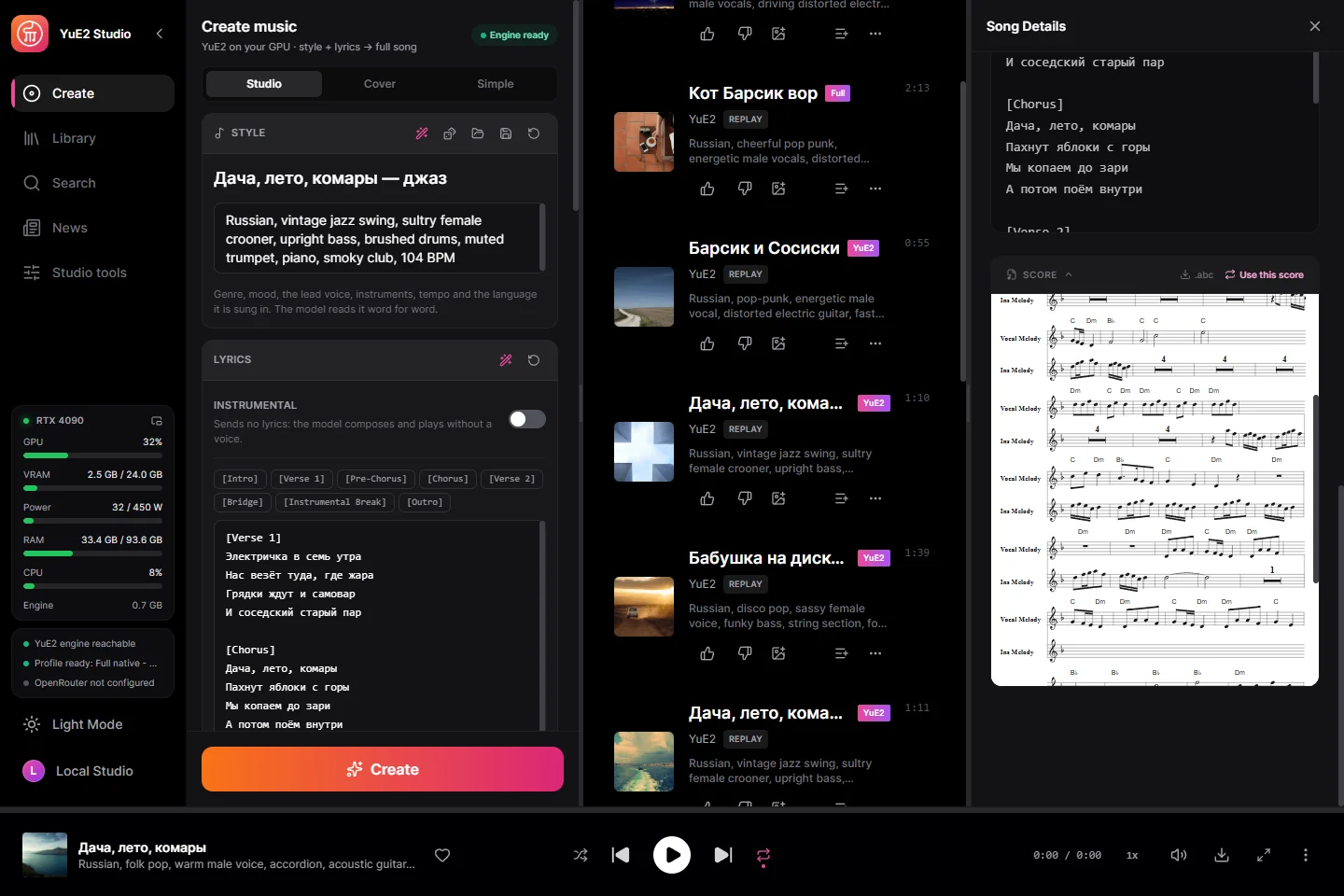
Next to the form, a track list fills up with cover images, durations, thumbs up and down, and a menu of further actions. A full-width player sits at the bottom, song details with lyrics on the right. Simple mode works like Suno's simple mode: write one sentence about what the song should be about, and the built-in assistant writes the style and lyrics.
The difference is in the bottom-left corner. Instead of a credit balance, it shows the load on your own graphics card, video memory and processor.
What the studio adds
Features that cloud generators lack or keep for pricier plans are all here, for free:
- The score in the song details. Every track comes with sheet music showing the melody and chords. "Use this score" sends it back to the form; change the key, tempo or a few notes and render again. The composition stays, the performance changes.
- Six separate stems: drums, bass, guitar, piano, vocals and other. Each stem is saved in the library under the original track.
- Covers. In the Cover tab, load a track; the studio writes down its melody and sings it in a different style.
- Extension by 15 seconds to 2 minutes and transposition by ±24 semitones.
- Conversion to MIDI and a MIDI editor with a piano roll.
- Karaoke with a timestamp on every word and a music video in MP4 as landscape, portrait or square.
- Your own style through LoRA, from the catalogue or trained on your own card.
- Lossless output. The default format is 24-bit FLAC, not MP3.
Every result, whether a stem, a cover or a new rendition, lands in the library as a track of its own. It remembers what it was made from and with which settings, so any finished song can be replayed bit for bit, or with a different sound, without composing again.
A player straight out of the Winamp era
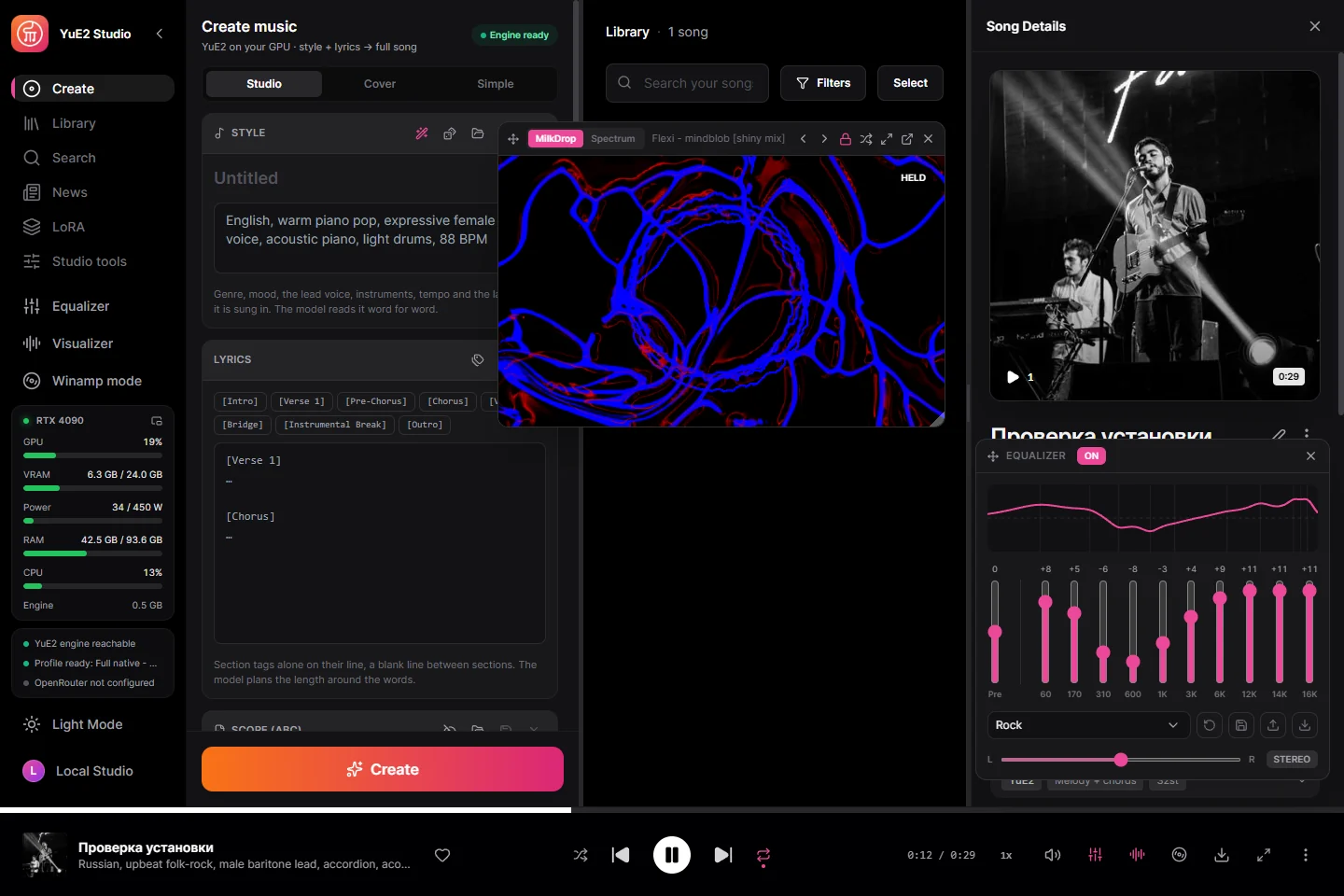
The author put work into listening too. The player has a ten-band equaliser with presets, a MilkDrop visualiser with hundreds of effects and a Winamp mode: the whole window turns into Winamp 2 with the original skin and ten more. Toggle it with Ctrl+M.
Installs like any other program
No ComfyUI, no Python, no command line. The studio is a single Windows 10/11 program written in Rust and React on top of the native yue2.cpp engine.
- On the GitHub releases page, download the
YuE2.Studio_…_x64-setup.exeinstaller, or the portable version you simply unzip. - In the model manager, pick the set for your card. The studio downloads it itself: from 4 GB for cards with 6 GB of memory to 9.9 GB in full quality for cards with 12 GB or more.
- Open one of the 110 ready examples and click Create.
The studio offers new versions itself and installs them in place. According to the author, a 3:38 song renders in about 46 seconds on an RTX 4090. On my RTX 4060 Ti I measured the model producing a four-minute track in two minutes.
Claude can drive the studio
The studio has a built-in MCP server with 162 tools. Once connected, Claude Code controls all of it: it writes lyrics, picks a style, generates the song, splits it into stems and prepares karaoke. Connecting takes one command:
claude mcp add --transport http yue2-studio http://127.0.0.1:8791/mcpThen just write: "Make a 30-second intro for my podcast, acoustic guitar, upbeat." The Activity panel shows what the agent changed in the studio.
The songs are yours
The studio is MIT-licensed. The YuE2 model is CC BY-NC 4.0 with an explicit permission for individual creators: individuals, content creators and musicians may publish, sell and license their songs free of charge. A company that wants to use the model commercially arranges a licence with its authors.
Start with the Simple tab
Type one sentence, for example "a song about Monday morning at the office, pop punk", and let the assistant write the rest. Then open the score in the song details and try changing the tempo.
If you want to get local AI for music, video or images running in your studio or on your computer, get in touch. I will set it up and show you how to work with it.
